Verify the inflight tab sort order is properly configured | ||
|---|---|---|
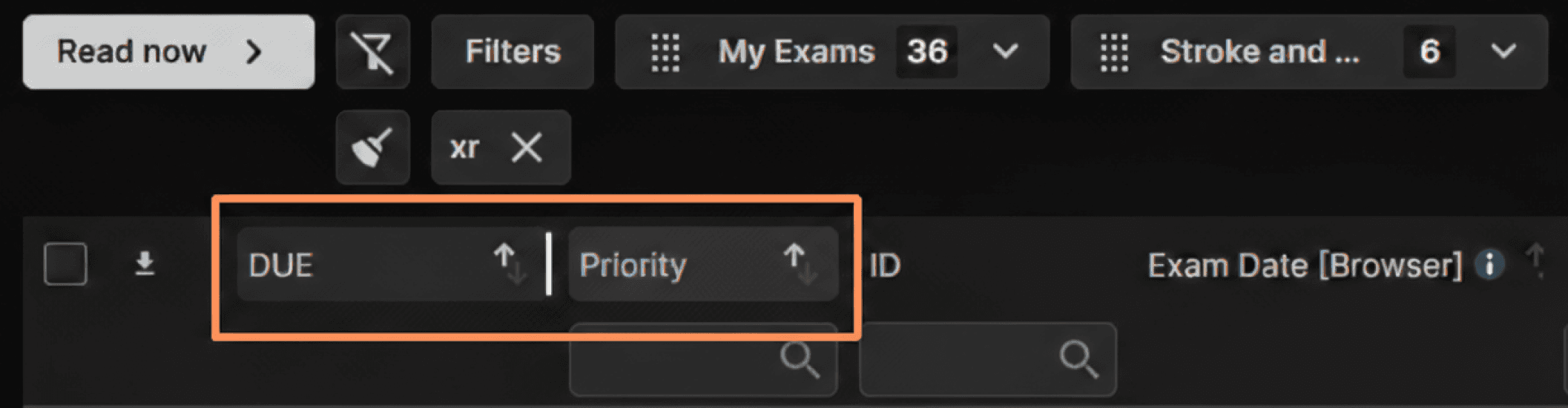
Step 1: When you first log in, the Inflight tab opens. Check the Due and Priority columns near the left side of the Inflight tab. The arrow next to Due and Priority should be pointing upward. As a result, the primary sort is the exam Priority with the most urgent priorities on top and the secondary sort is the due time with the oldest due exam on top. | ||
 | ||
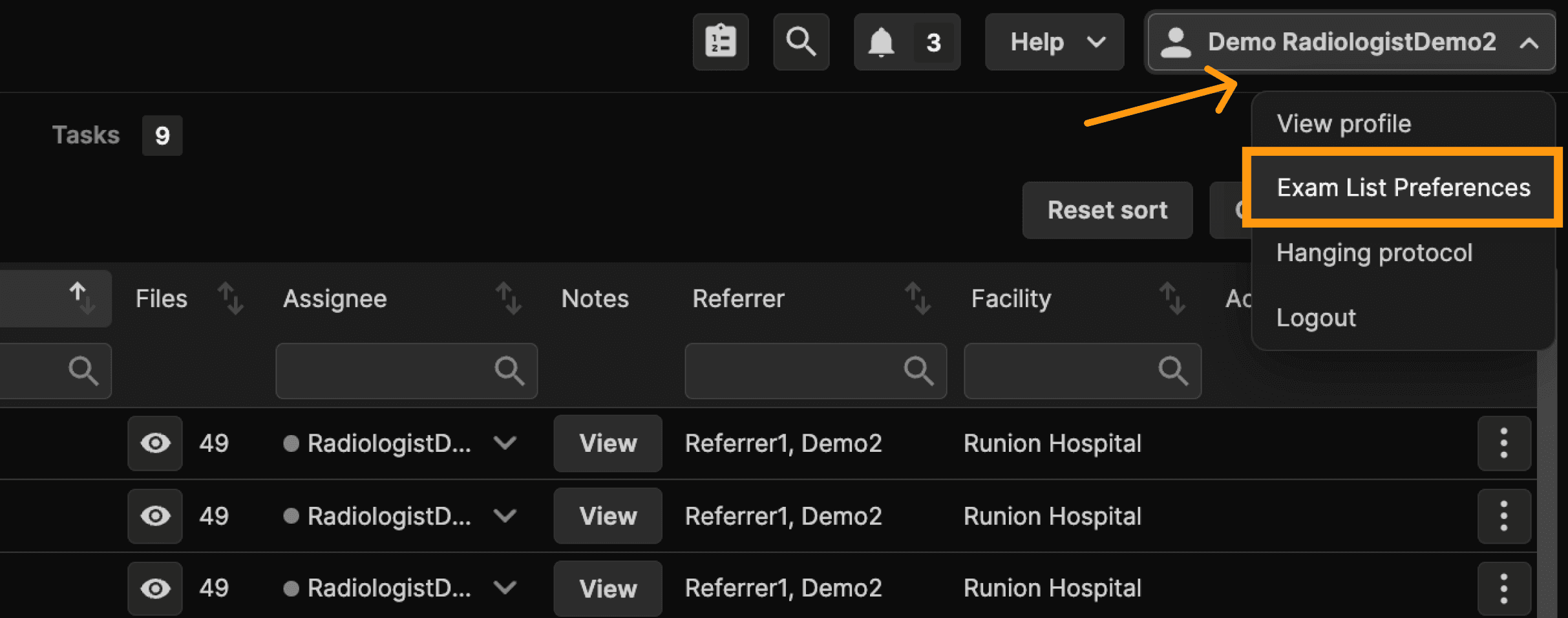
Step 2: If you observe that the due time sort is inverted, select your name at the upper right corner of the screen. Click Exam List Preferences. | ||
 | ||
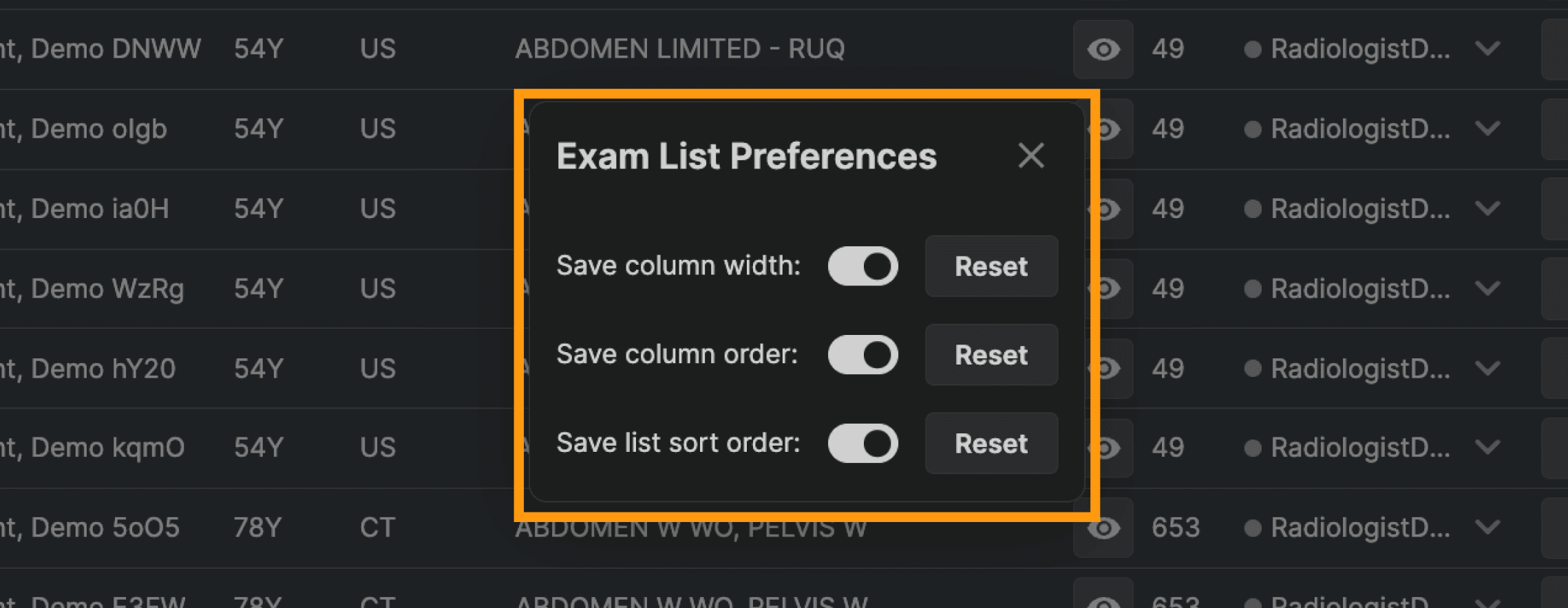
Step 3: From the Exam List Preferences dialog, toggle on, “Save list sort order.” You may also switch on the column width and column order options if so desired. Changes you make will be then saved as your preferences. | ||
 | ||
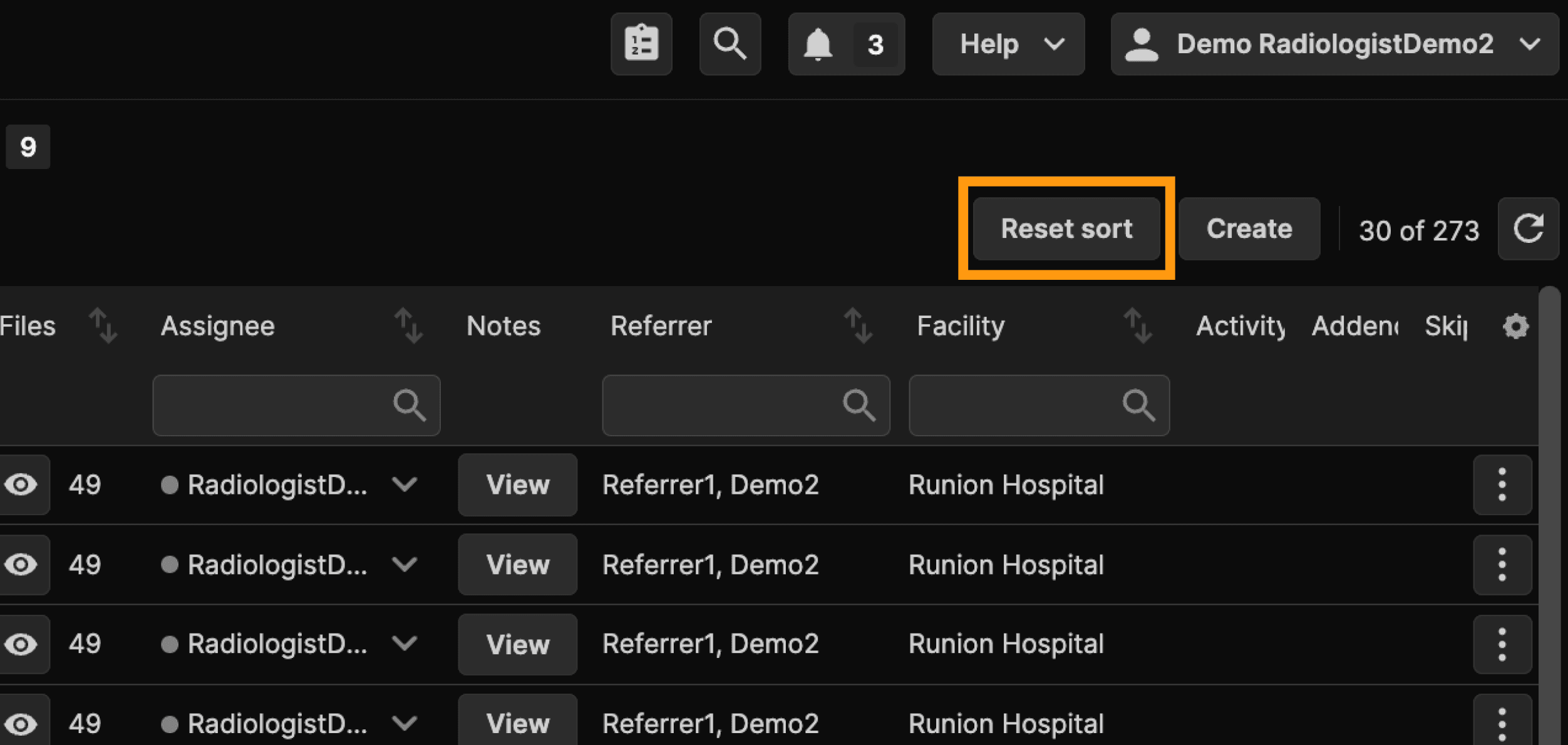
Step 4: Near the upper right of the screen, click Reset Sort. The sort order will be properly set and saved. | ||
 |
When using auto-assignment and/or an assistant manually assigns exams | ||
|---|---|---|
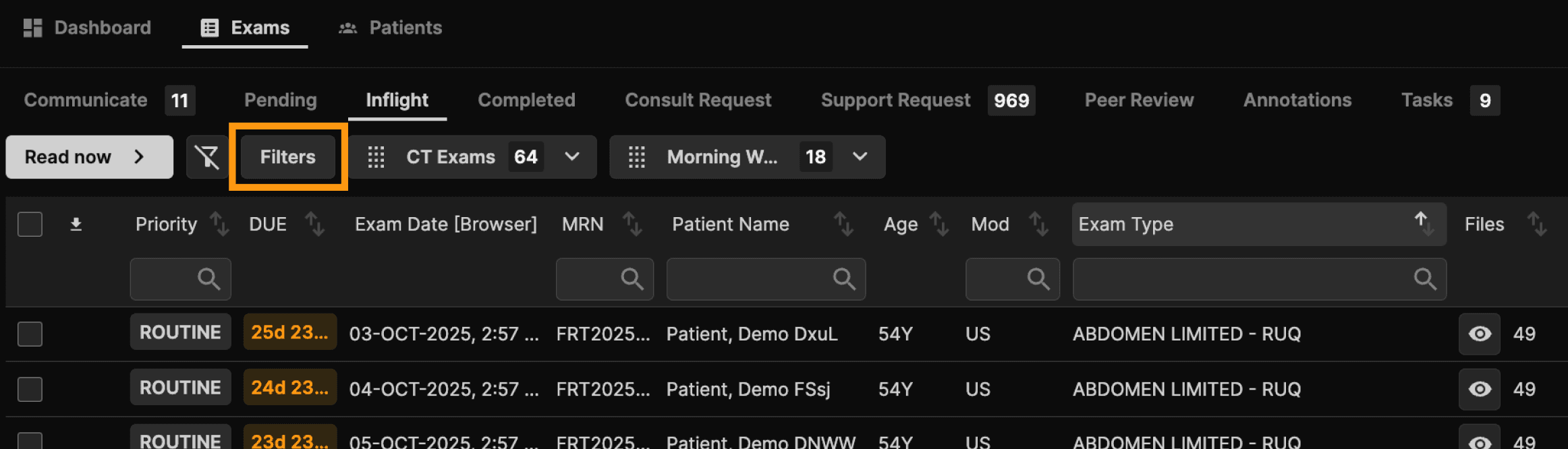
Step 1: If desired, Filter to narrow the listed Inflight exams. | ||
 | ||
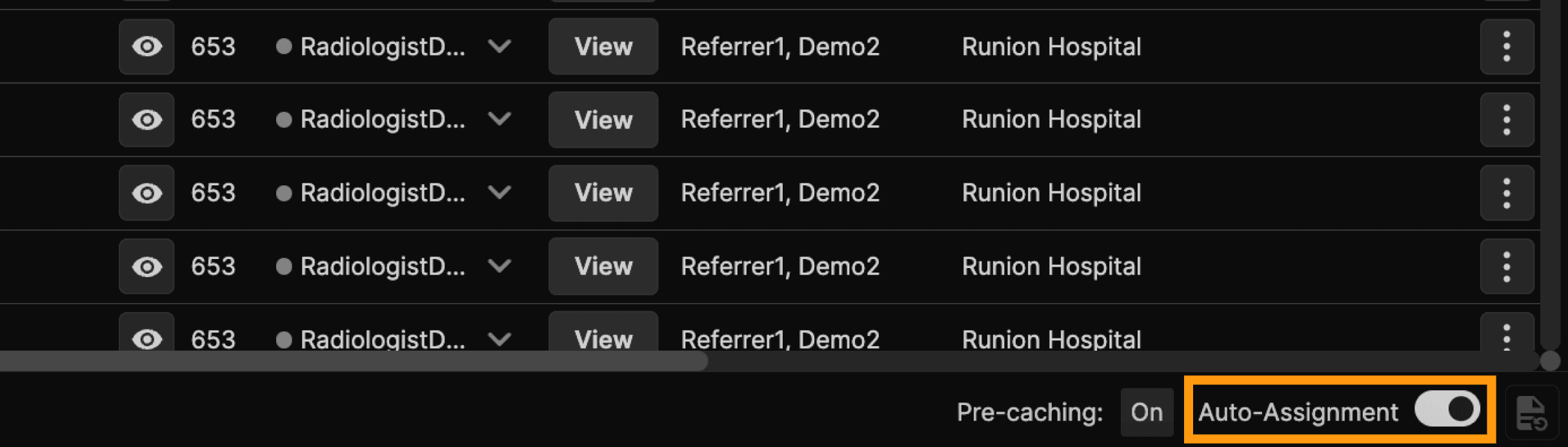
Step 2: Verify that auto-assignment is on at the bottom right of the screen. | ||
 | ||
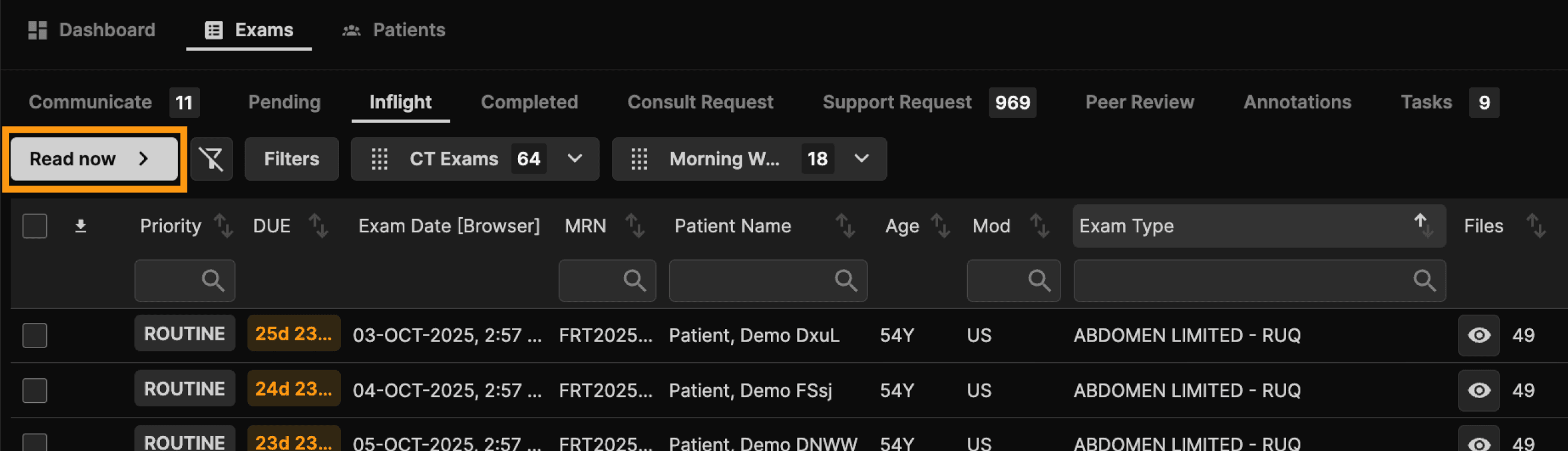
Step 3: Then, click Read now, the white button near the upper left of the screen. The Read Now button opens and sequences only the exams that have been assigned to you, ignoring any unassigned or skipped exams. Once all assigned exams are completed, a ‘You’re done’ message appears to confirm you’ve finished your queue. | ||
 | ||
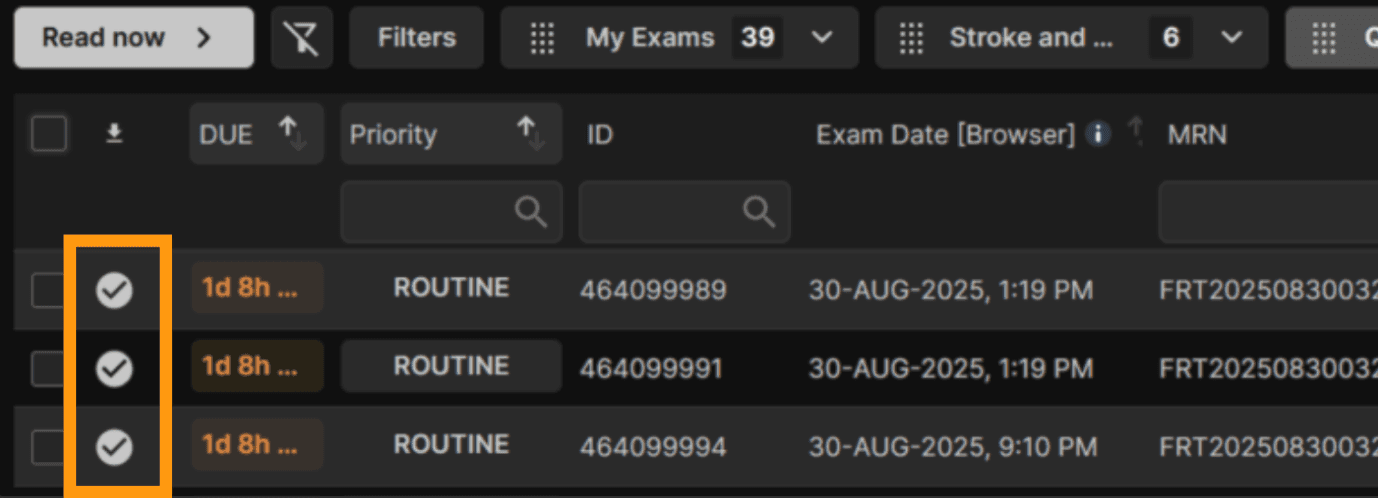
Step 4: Exams assigned to you will be queued in order. | ||
 | ||
Step 5: When Read now is employed, click Sign and Next to complete an exam and move to the next exam. After the last assigned exam is completed, the system returns to the Inflight tab. | ||
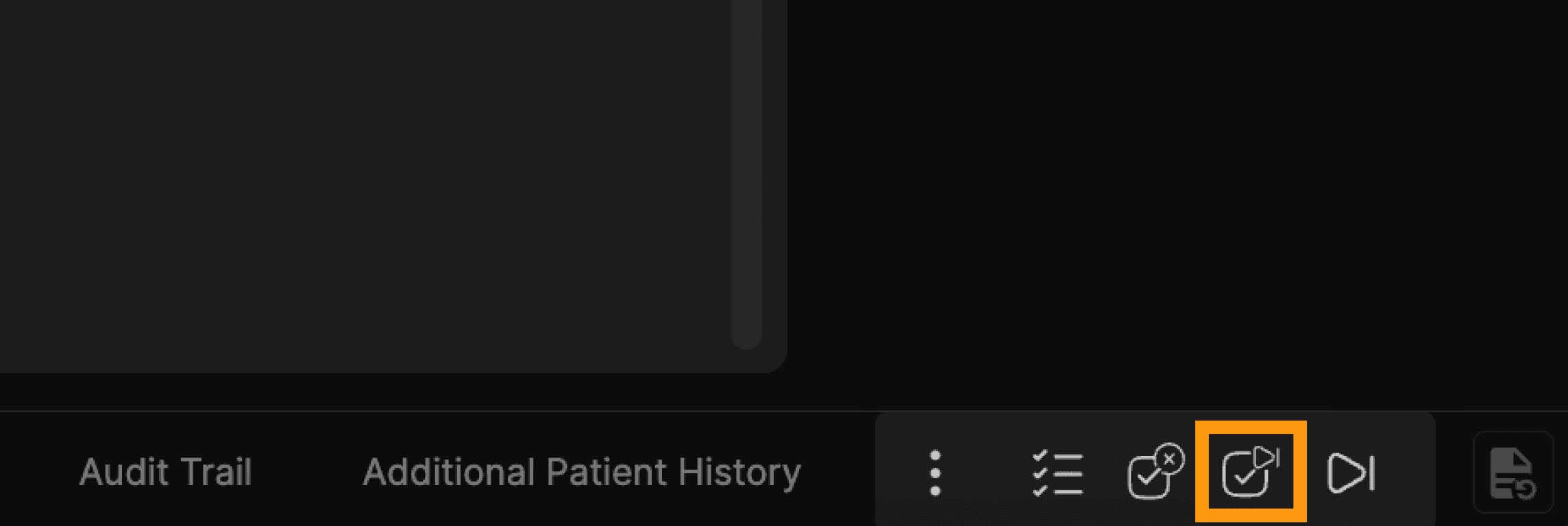 | ||
Instead of using Read now, click on any exam row (perhaps the top exam) to read it. When Sign and Next is used to complete an exam, the system will display exams whether assigned or not until the only remaining Inflight exams are those you skipped or those assigned to others. |
When reading exams that are not assigned | ||
|---|---|---|
Step 1: Filter InFlight or not as desired. | ||
| ||
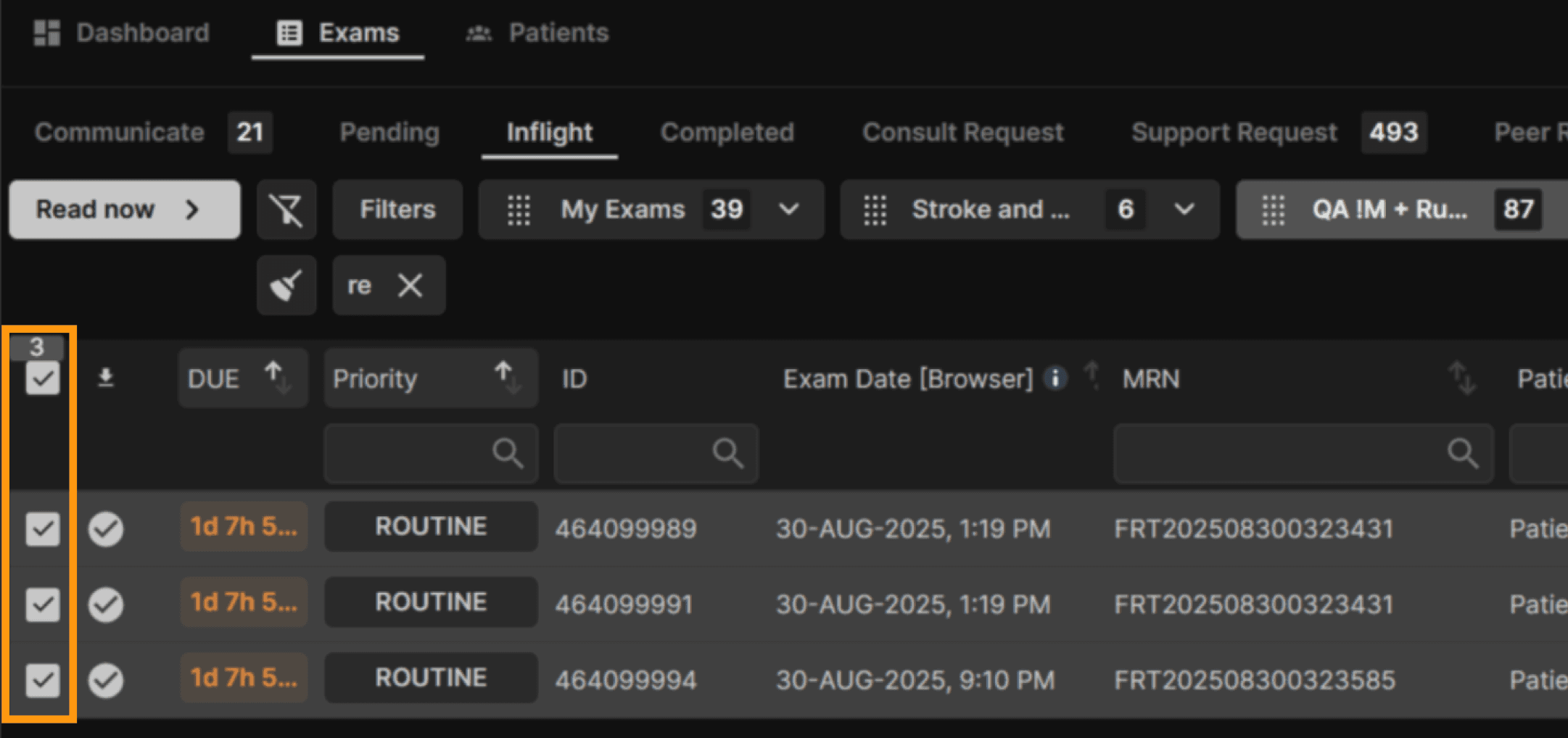
Step 2: Select any exam from the list by checking the box in the left-hand column. Select all exams in the filtered list by checking the box at the top of the checkbox column. | ||
 | ||
Step 3: To read a queue of exams, select from two options:
| ||
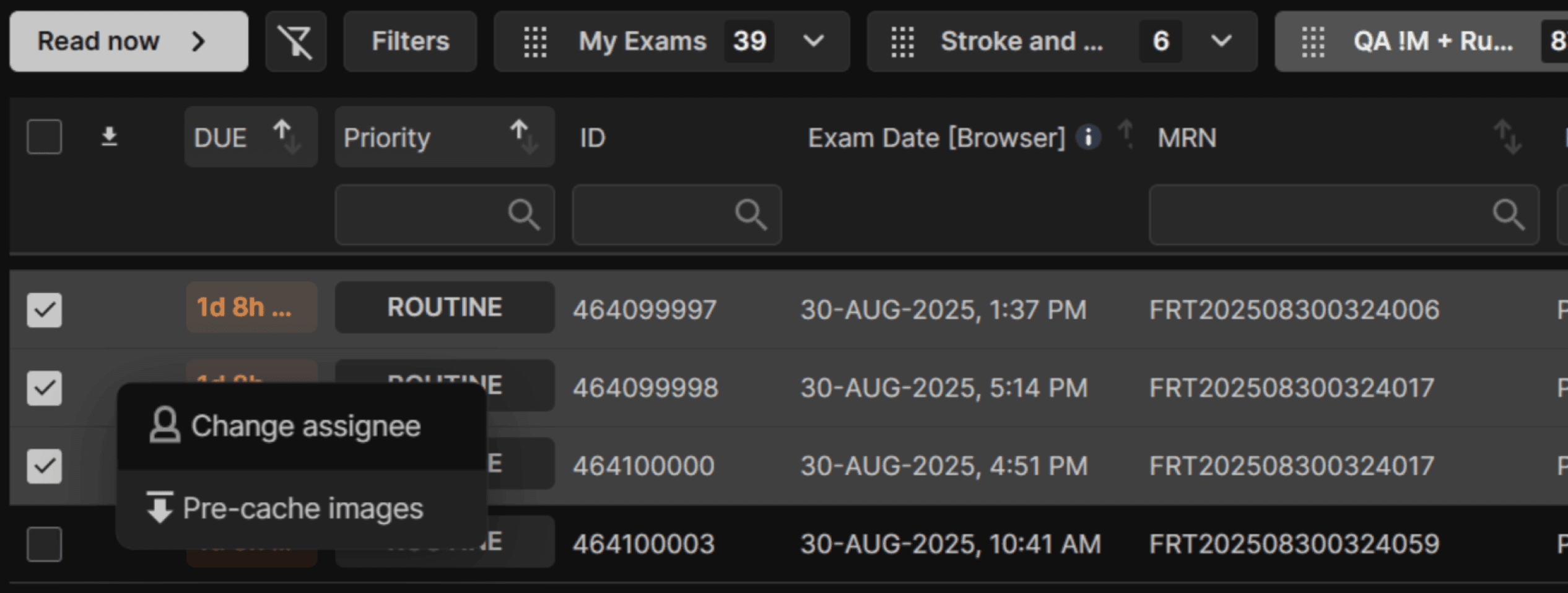 | ||
This tells the system to prioritize local caching of the selected exam groups, which can be useful if there is a long queue of assigned exams and the reader wants to prioritize reading selected exams. When the desired exam is locally cached, select it by clicking on the desired row. As is always true when an exam is individually selected from InFlight, when Sign and Next is used to complete an exam, the system will display exams whether assigned or not until the only remaining Inflight exams are those skipped or those assigned to others. |
Key lessons | ||
|---|---|---|
| ||
| ||
| ||
|