Reporting
Peer review: Acknowledging and editing peer reviews from the peer review tab
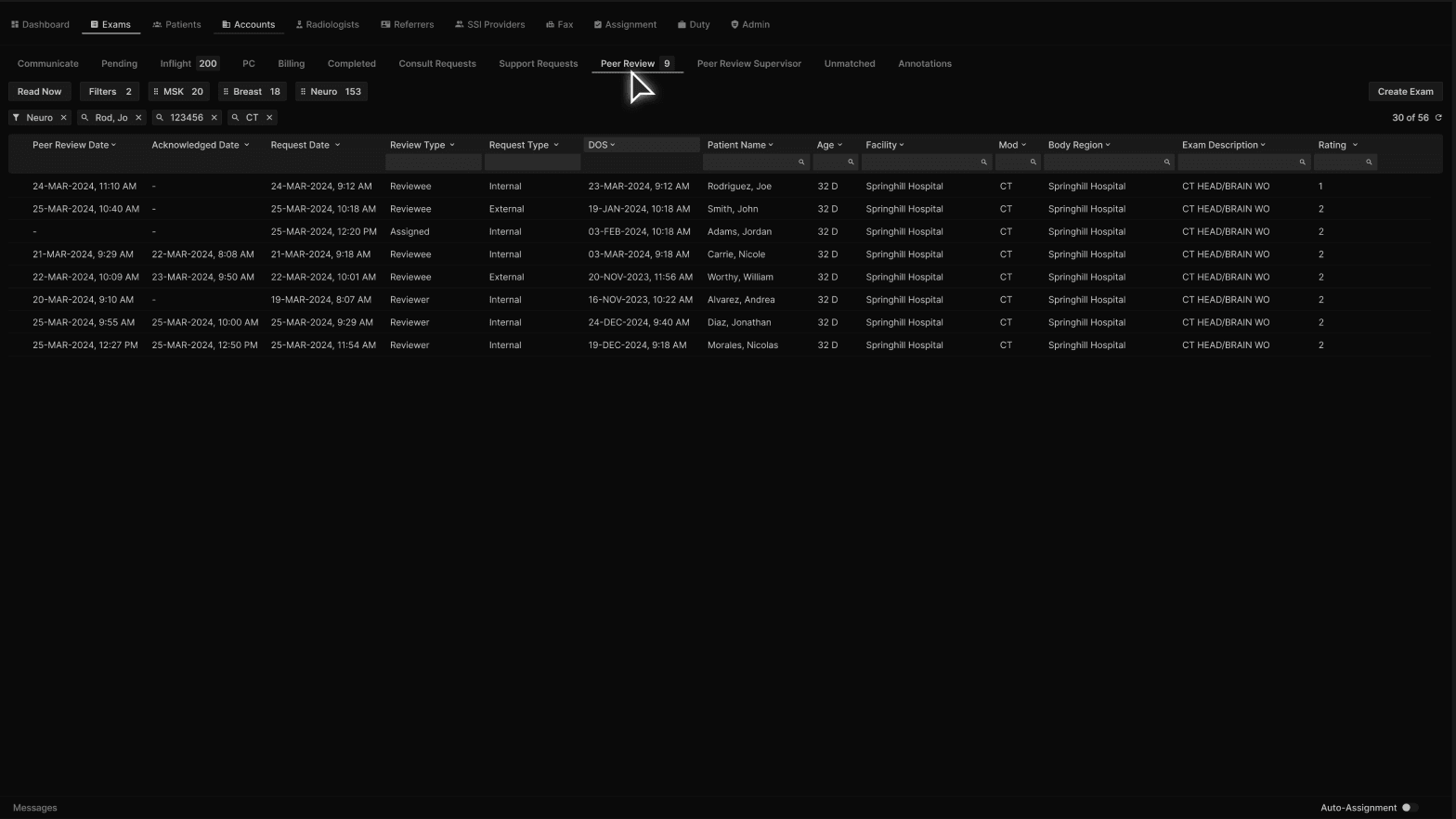
The Peer Review tab shows the total number of Peer Reviews that require action for the logged Reviewee/Reviewer. | |
|---|---|
 |
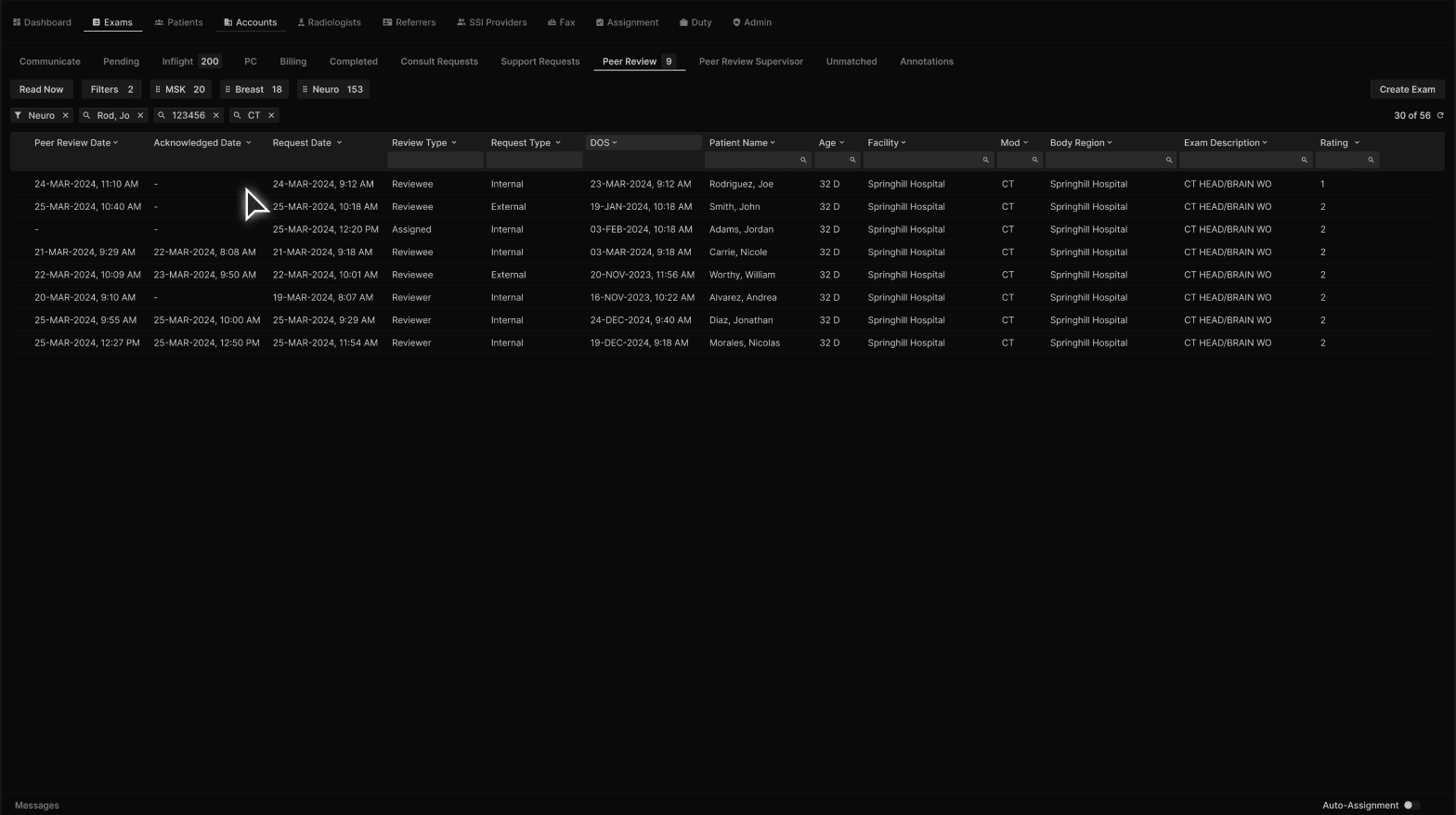
The Peer Review tab shows the peer review date and time, the acknowledged date and time, the Request Date for assigned reviews and other information. | |
|---|---|
 |
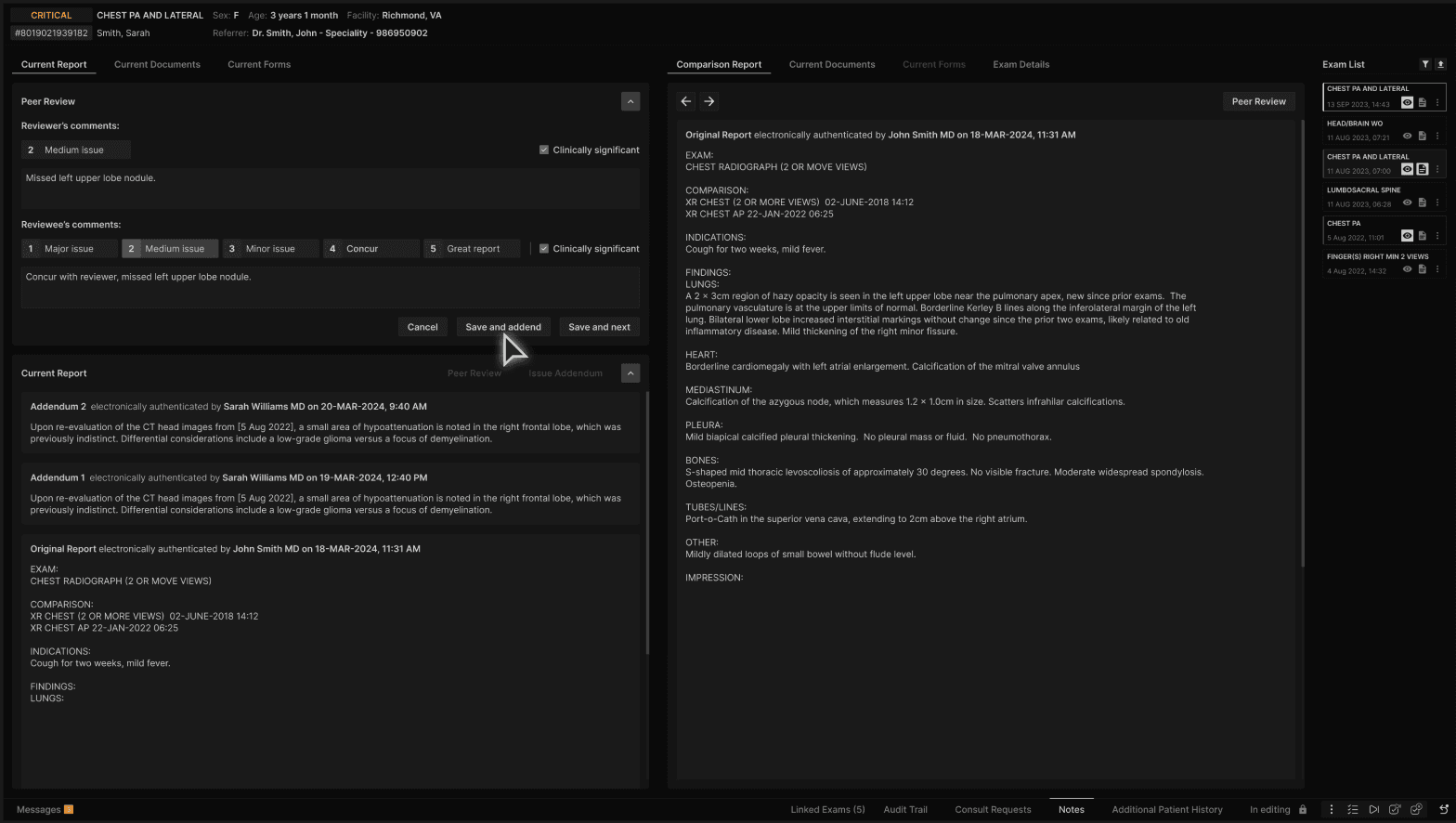
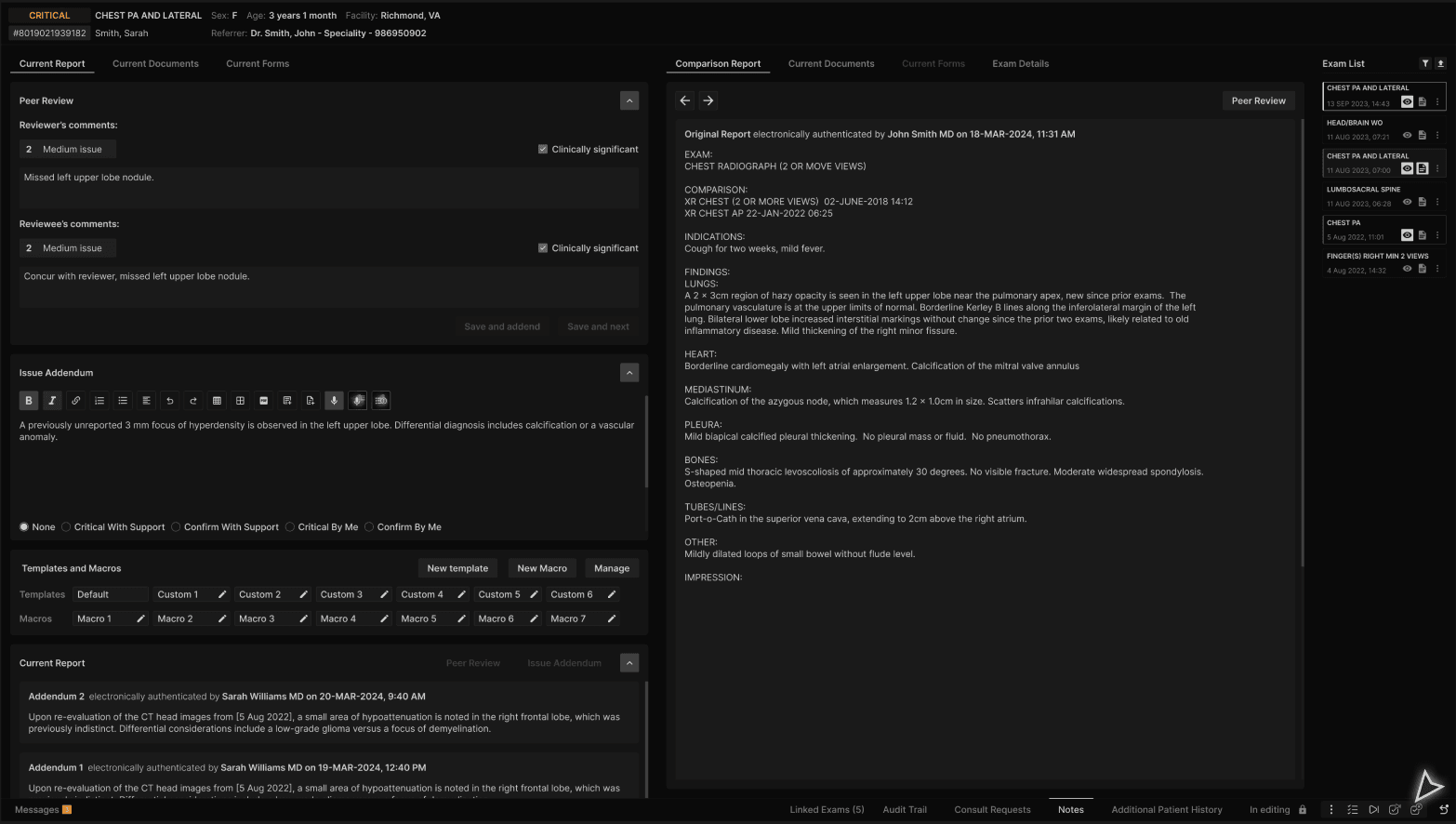
When a “Reviewee” peer review is opened, the screen appears as below. The default score is the same as the one created by the reviewer and the clinically significant check box is selected by default if selected by the reviewer. To issue an addendum, click “Save and addend.” | |
|---|---|
 |
The “Issue Addendum” editor is displayed. | |
|---|---|
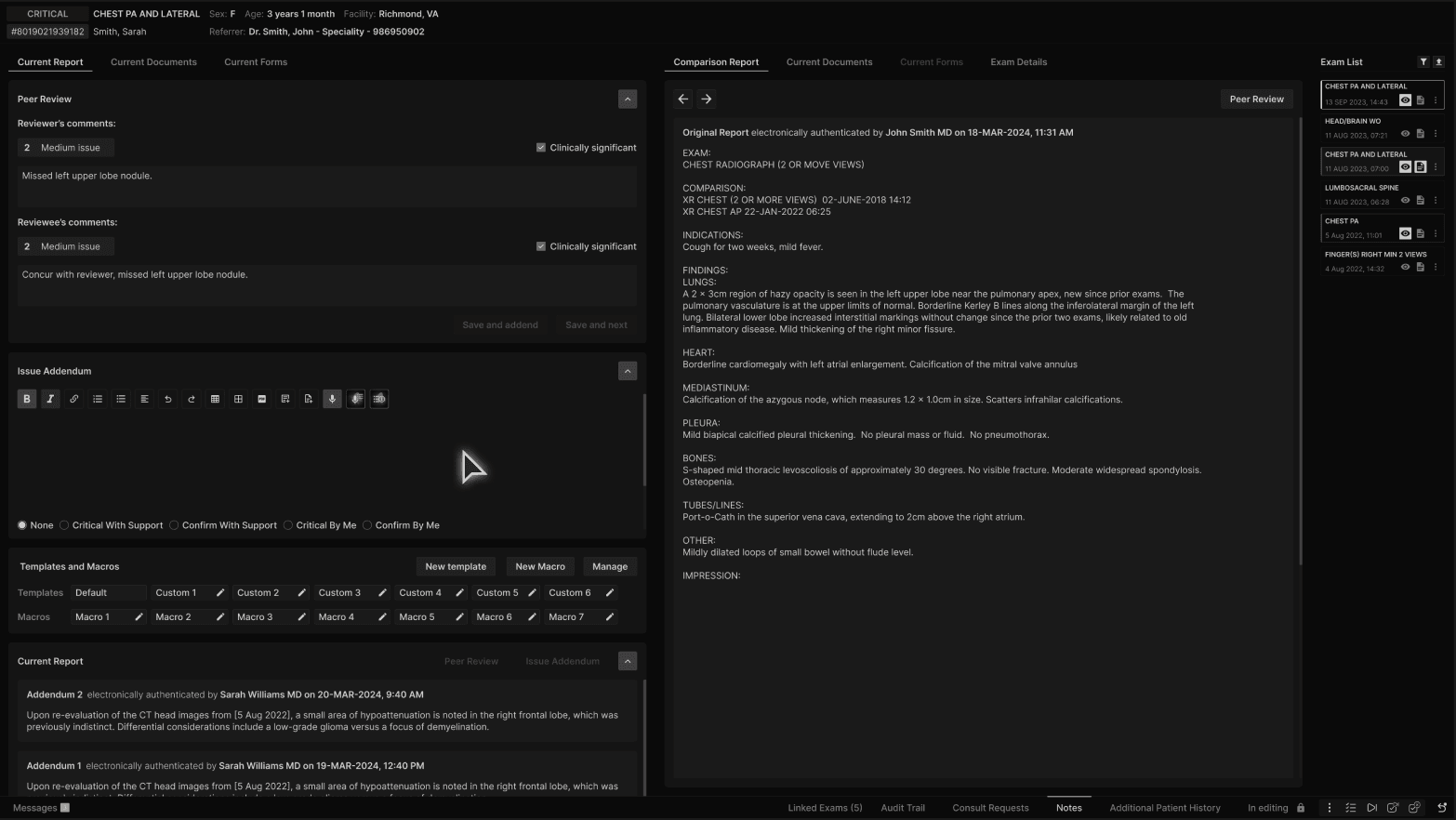 |
To complete the addendum the reviewee will use the bottom ribbon to "Sign and next", to sign the addendum and move to the next assigned peer review, or "sign and close" to sign the addendum and be returned to the peer review list. | |
|---|---|
 |
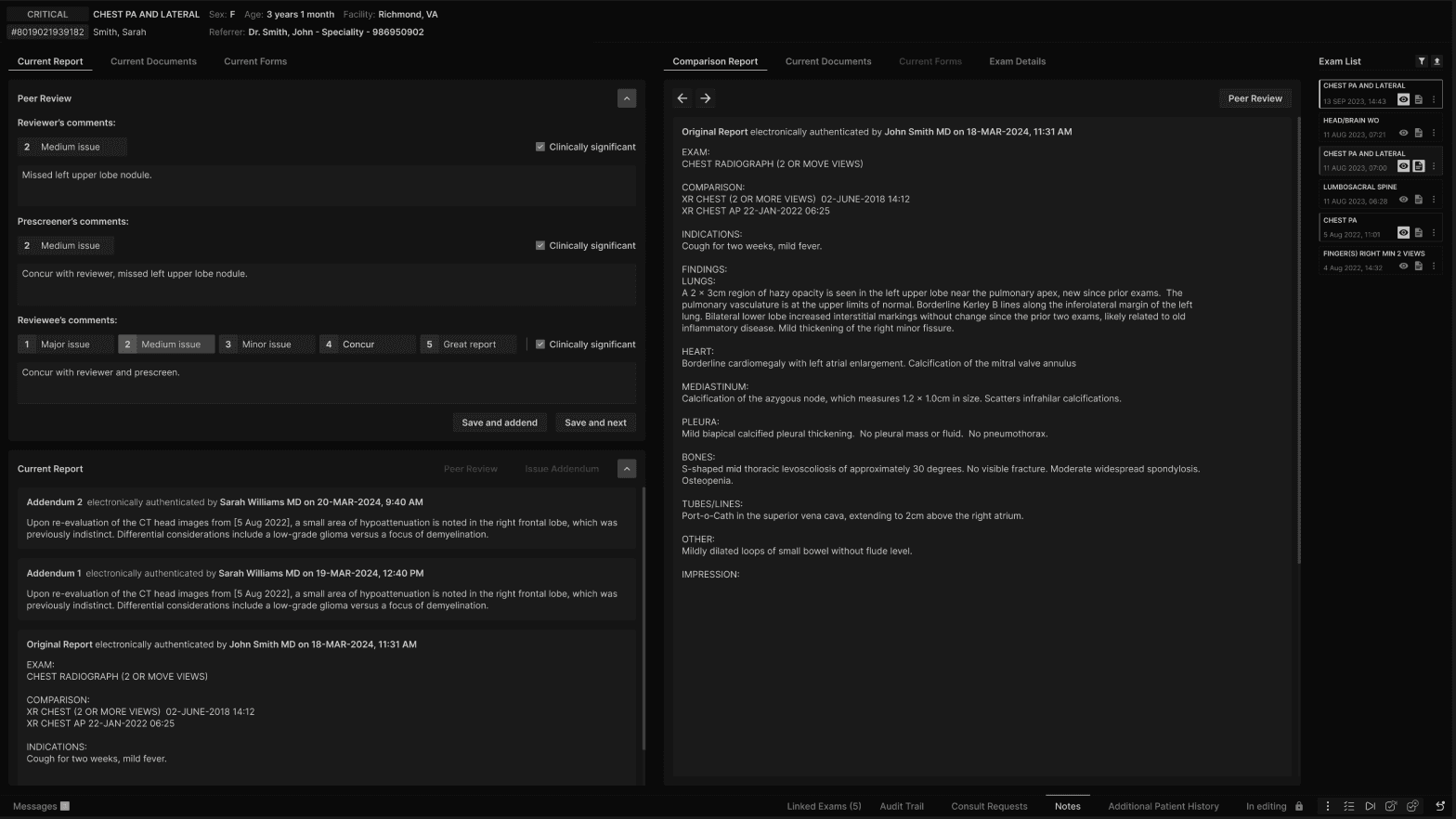
When the prescreen peer review setting is active for a facility group, the peer review dialog box will function as previously described, note the additional "Prescreener" section. | |
|---|---|
 |