Power wheel | ||
|---|---|---|
Opportunity: Radiologists and clinicians must review image stacks quickly and efficiently. For decades, users have been left with two main choices for paging through images:
Both are tedious and lead to repetitive stress injury. | ||
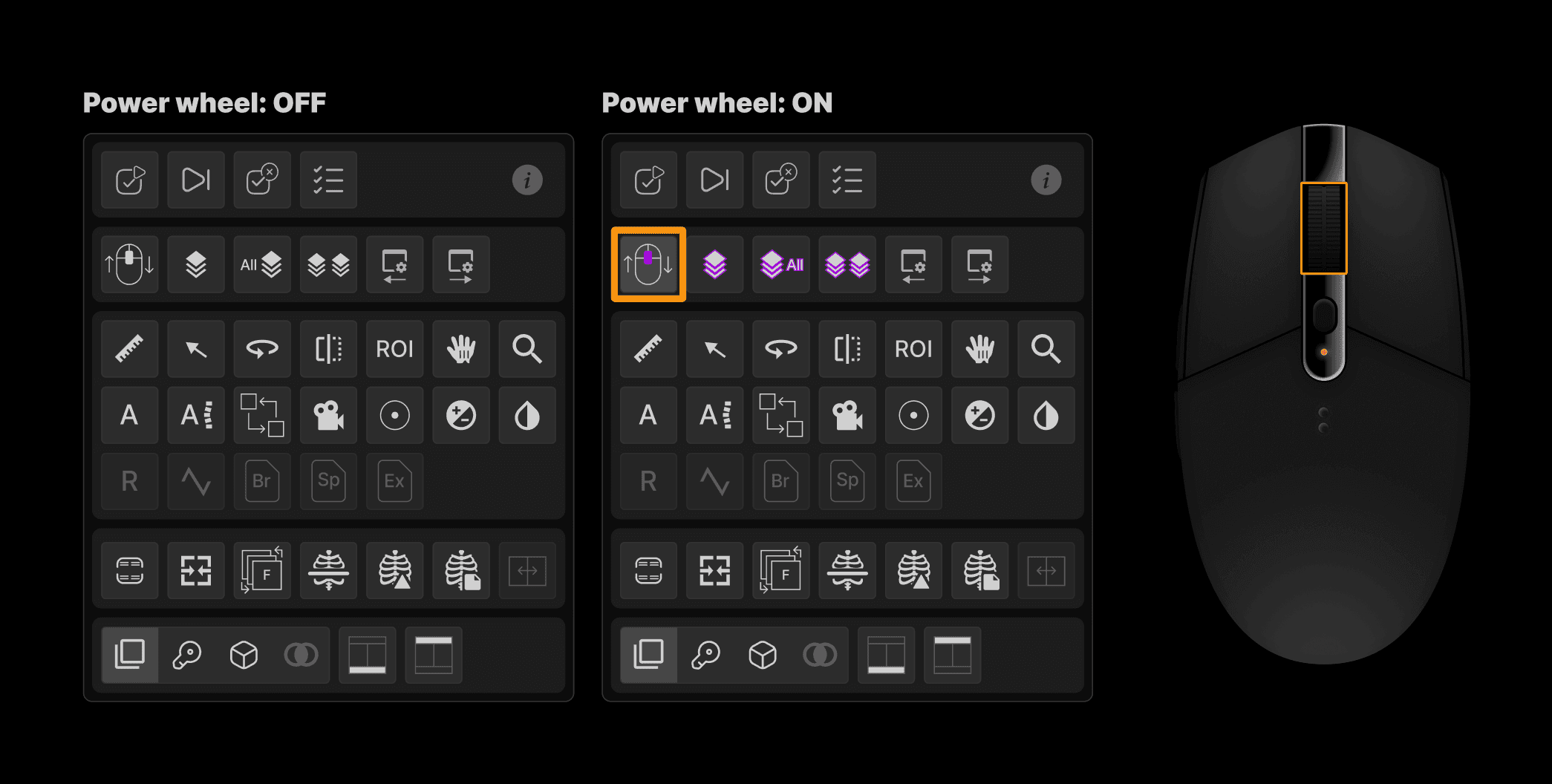
Solution: The Power Wheel transforms the mouse wheel into an intuitive, hands-free cine control tool:
This enhancement enables rapid, fluid review of image stacks using just the mouse wheel—ideal for high-efficiency workflows and dynamic imaging scenarios. A new keyboard shortcut (~ key) turns the feature on an off. | ||
 |
Page tool | ||
|---|---|---|
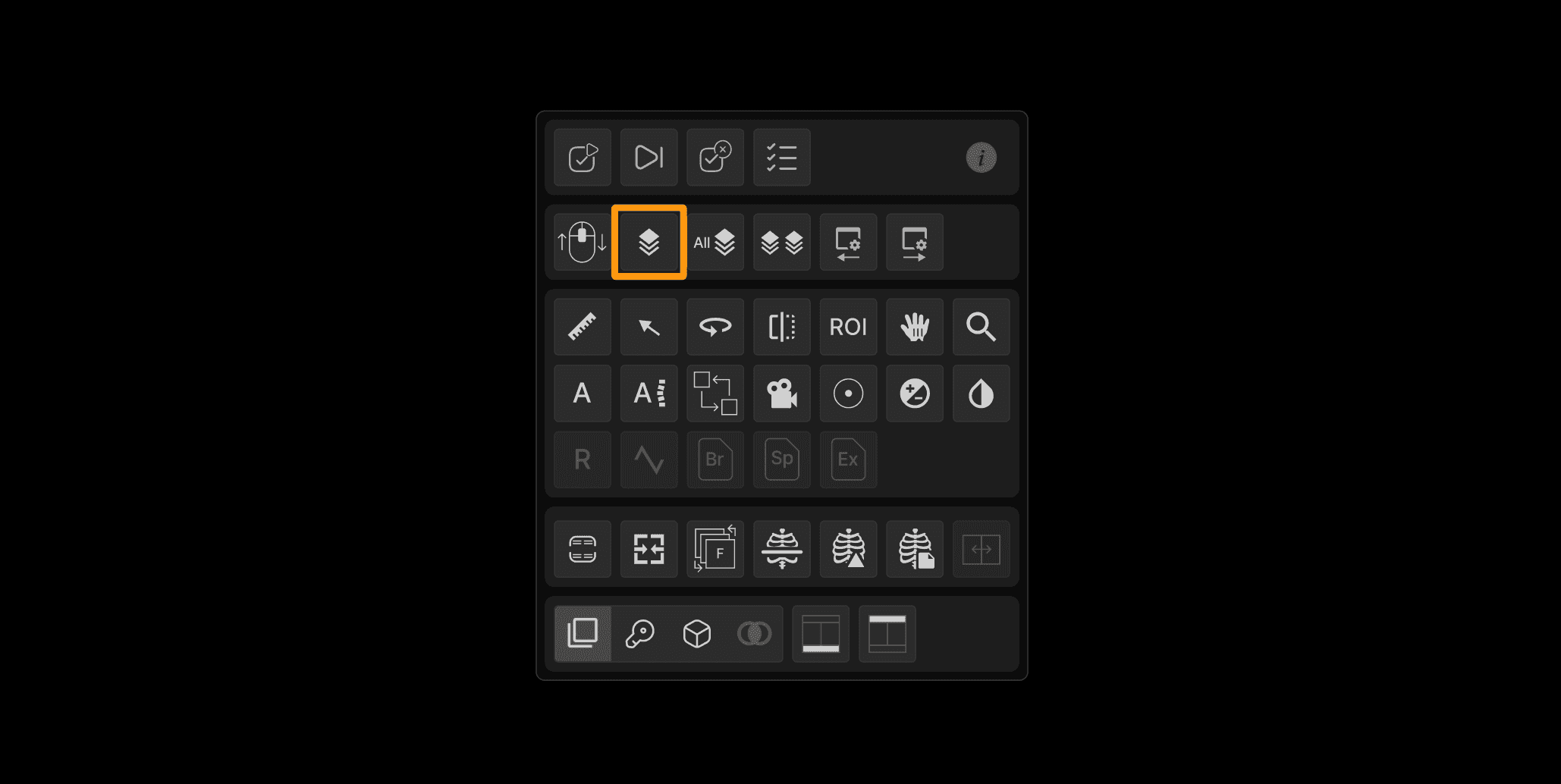
Opportunity: Radiologists must page through single series or multiple series of images from the current and prior exams. Providing intuitive tools that do not require manual series linking saves time, mouse clicks, and distractions from image viewing. | ||
Solution:
| ||
 |
PageAll tool | ||
|---|---|---|
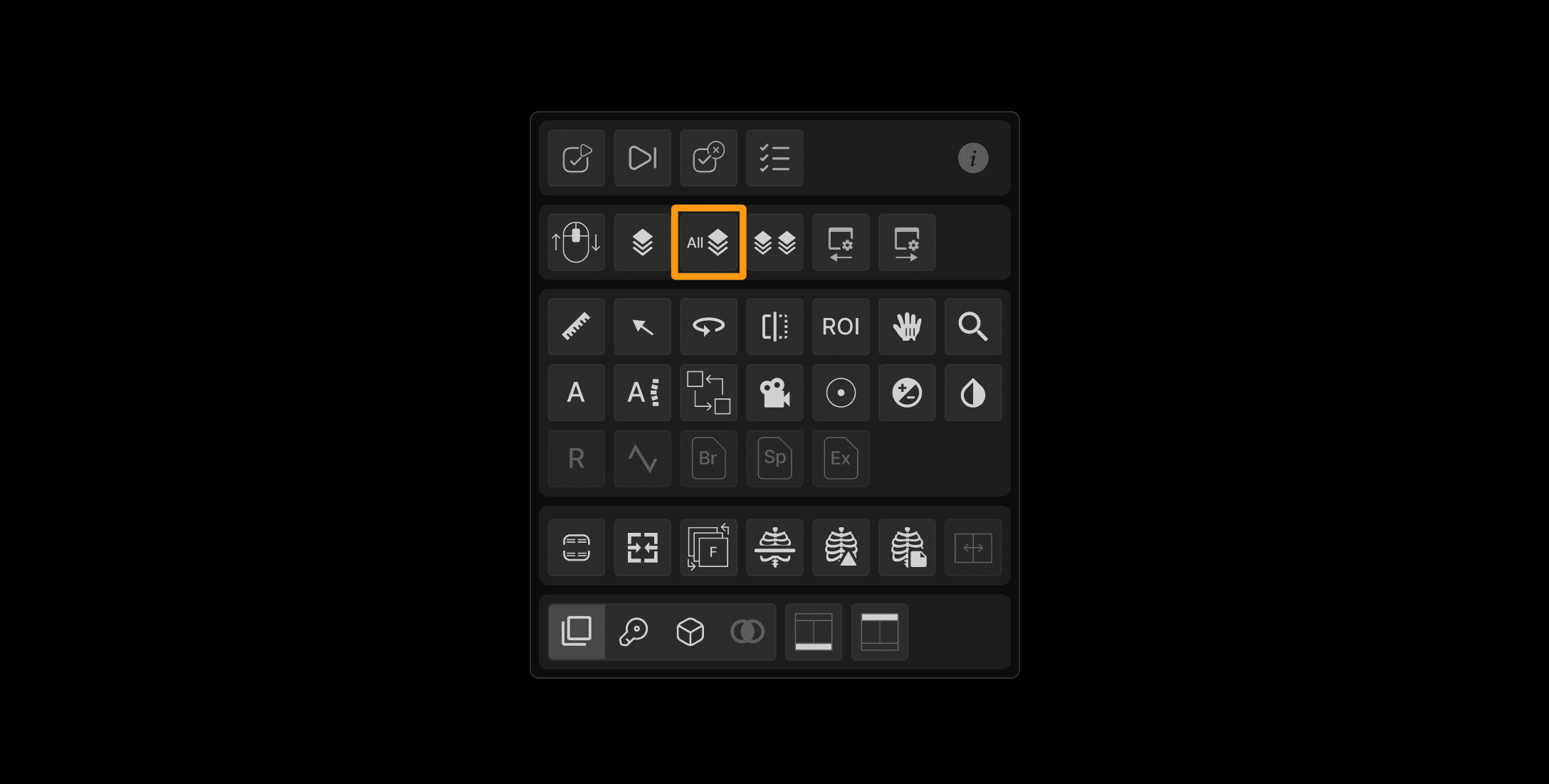
Opportunity: Radiologists often wish to page all images in the same plane. | ||
Solution: The Page All tool enables synchronized scrolling across all series within the same exam and in the same plane. | ||
Key benefits:
| ||
 |
Page same plane tool | ||
|---|---|---|
Opportunity: Provide a way to compare series from new and prior exams that requires far less mouse movements and clicks. | ||
Solution: The Page Same Plane tool causes images in the same plane to page synchronously from current and prior exams. The paging is controlled by the slice increment in the series in which the tool is used. | ||
Key benefits:
| ||
 |
Window/Level improvements | ||
|---|---|---|
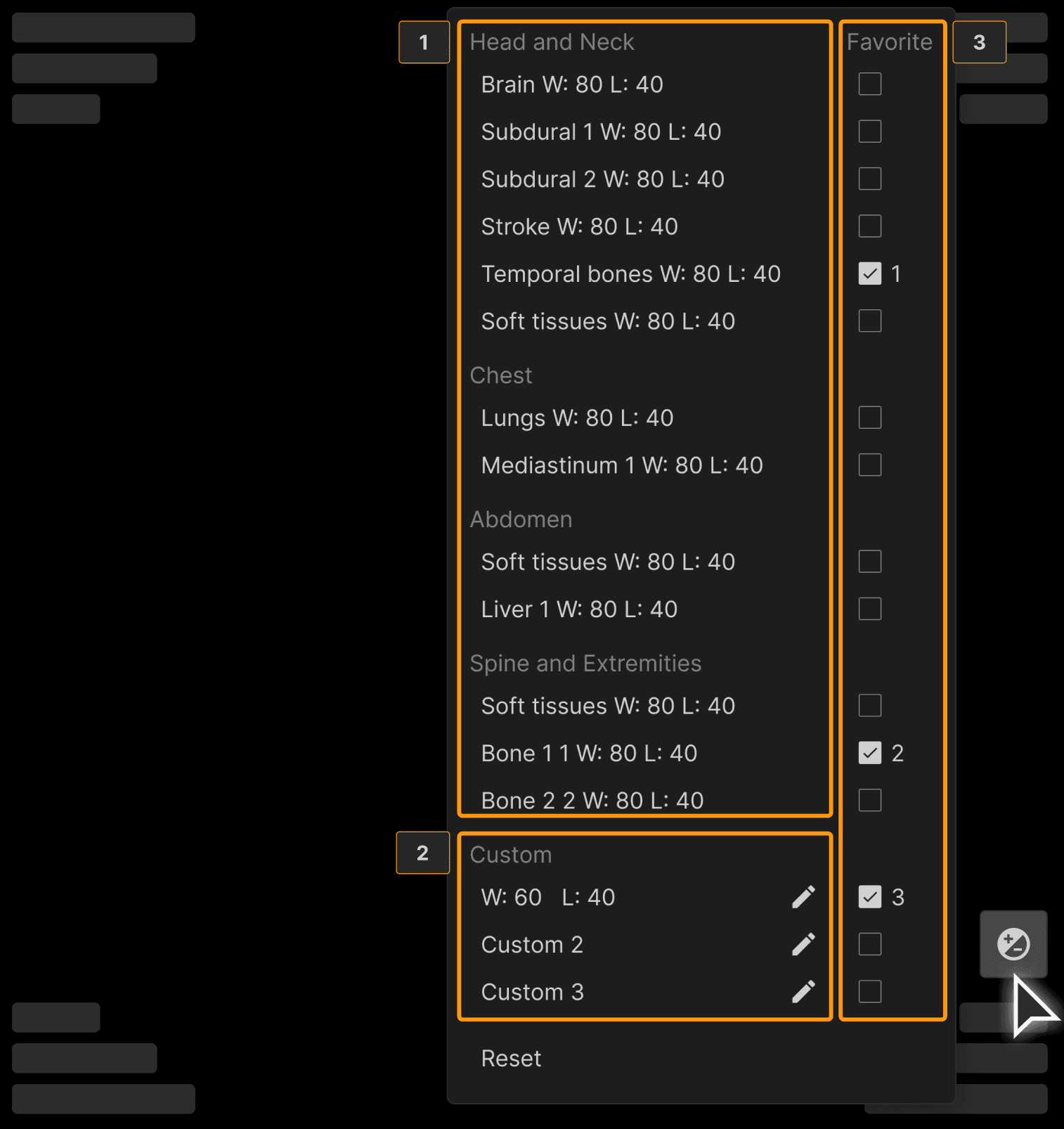
Opportunity: Adjusting Window/Level (W/L) settings often involves repetitive steps, and users typically apply the same few presets. PACS have historically often failed to provide easy way to quickly toggle between preferred window/levels or color LUT settings. | ||
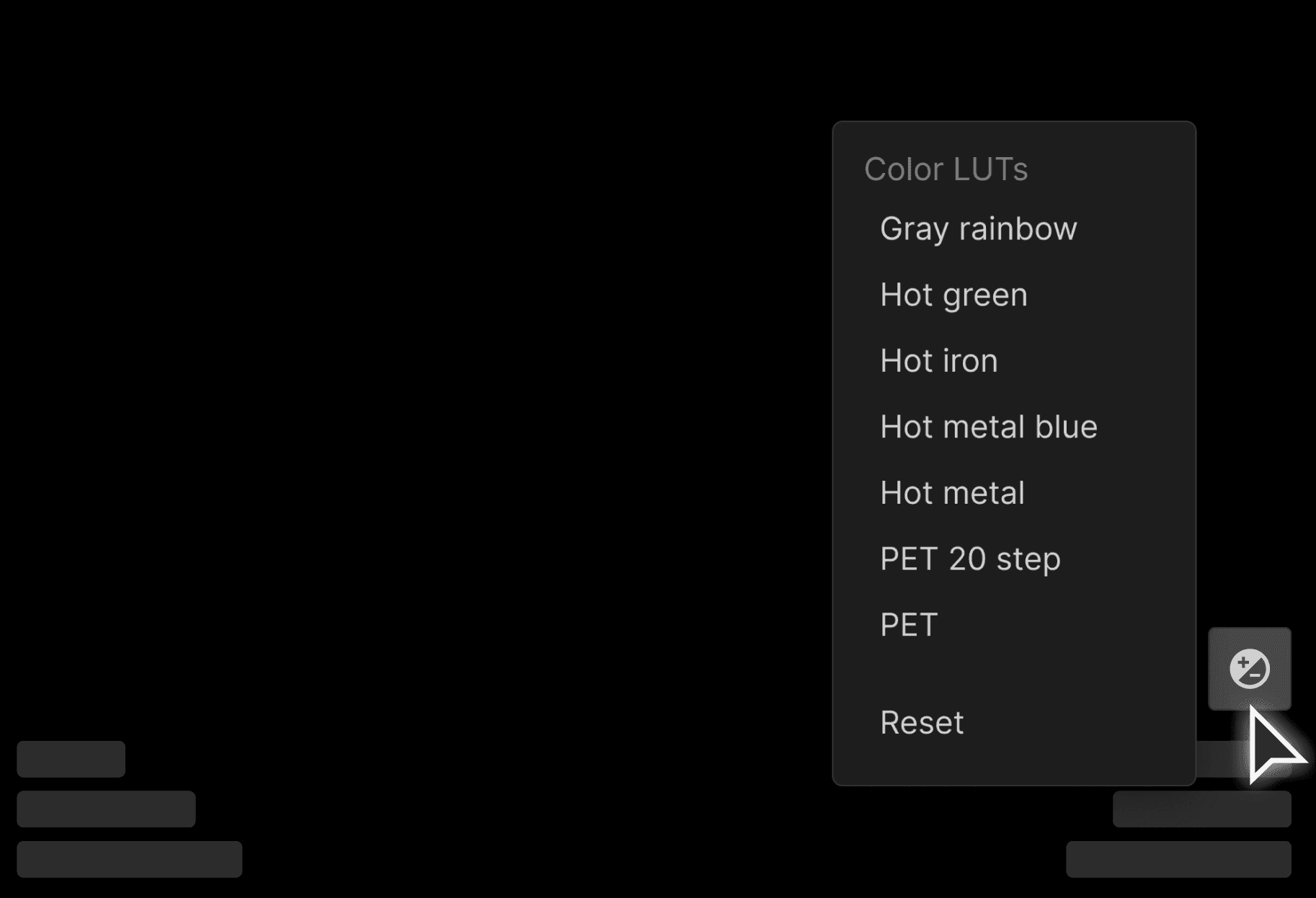
Solution: A window/level icon is now present in the lower right of appropriate image viewports: Right click on the icon to:
| ||
 | ||
For PT and NM studies only:
W/L Acceleration with Shift Key:
| ||
 |
Window/Level improvements | ||
|---|---|---|
Opportunity: Need a working image notepad so that key images from current and prior exams can be collected and stored, thereby telling the patient's imaging story in a concise, efficient manner. By creating a montage first, the radiologist can then create the report without distracting task-switching been viewing the images and report. | ||
Solution: The enhanced Montage panel, ideally used when reading cross-sectional imaging exams. The montage is generally the first image presentation when the exam is viewed for comparison, providing a very quick view of the patient's imaging story. It's also a great service to referrers and patients. With this enhancement, users can now:
|