Release notes: Workflow and reporting
Workflow and reporting: Version 12.0.0
New Worklist Design and Simplified Caching |
|---|
Our previous caching infrastructure relied on server-side queueing logic designed to anticipate user workflow and proactively cache studies. While this approach worked in many scenarios, it could sometimes create differences between what users saw in their worklist and what the system prioritized for caching, making it harder to consistently ensure the next case was immediately available. In some cases, users adopted manual workflows to better control caching behavior. |
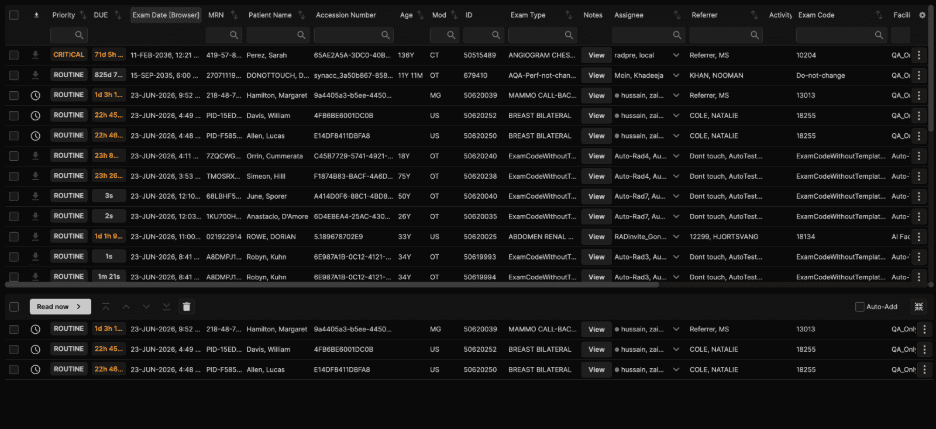
Individual Worklist (IWL) — Personal Reading Queue Reading Physician users have a dedicated Individual Worklist (IWL) that gives them full control over what gets pre-cached and when — eliminating unpredictable background caching and ensuring images are ready in a predictable, physician-directed order. |
Building the Queue Reading physicians can add exams one at a time or in bulk from the Universal Worklist (Inflight tab) using the download arrow button. Added exams appear in a personal split worklist at the bottom of the screen. The system caches only exams explicitly present in the IWL, in the order they appear — so what's at the top is always ready first. |
Reordering the Queue Exams can be moved up or down individually, jumped to the top, or relocated as a selected group. Any reorder instantly updates caching priority and interrupts the current cache operation if needed — ensuring the most urgent cases are always loaded first. |
Cache Status Icons Cache status is visible both on the Inflight tab and within the IWL, so reading physicians always know the load state of each exam without opening it. Icons persist on the Universal Worklist so status is visible at all times, even for exams not yet moved to the IWL. Each exam group (primary exam plus relevant priors) is cached as a single unit, and the icon reflects the status of the entire group. |
Auto-Add When the Auto-Add toggle is enabled (top right of the IWL), the next eligible exam from the Universal Worklist will automatically stage itself for reading and caching when the current queue is exhausted — keeping the workflow moving without manual intervention. |
Queue Persistence The IWL is saved per user and workstation combination and persists across logout and login. If a case was read or reassigned to another reader while the physician was logged out, it will be automatically removed from the IWL upon their return. Completed exams are removed from the IWL immediately after being read. |
 |
AI Findings Tag Type and Dedicated Worklist Column |
|---|
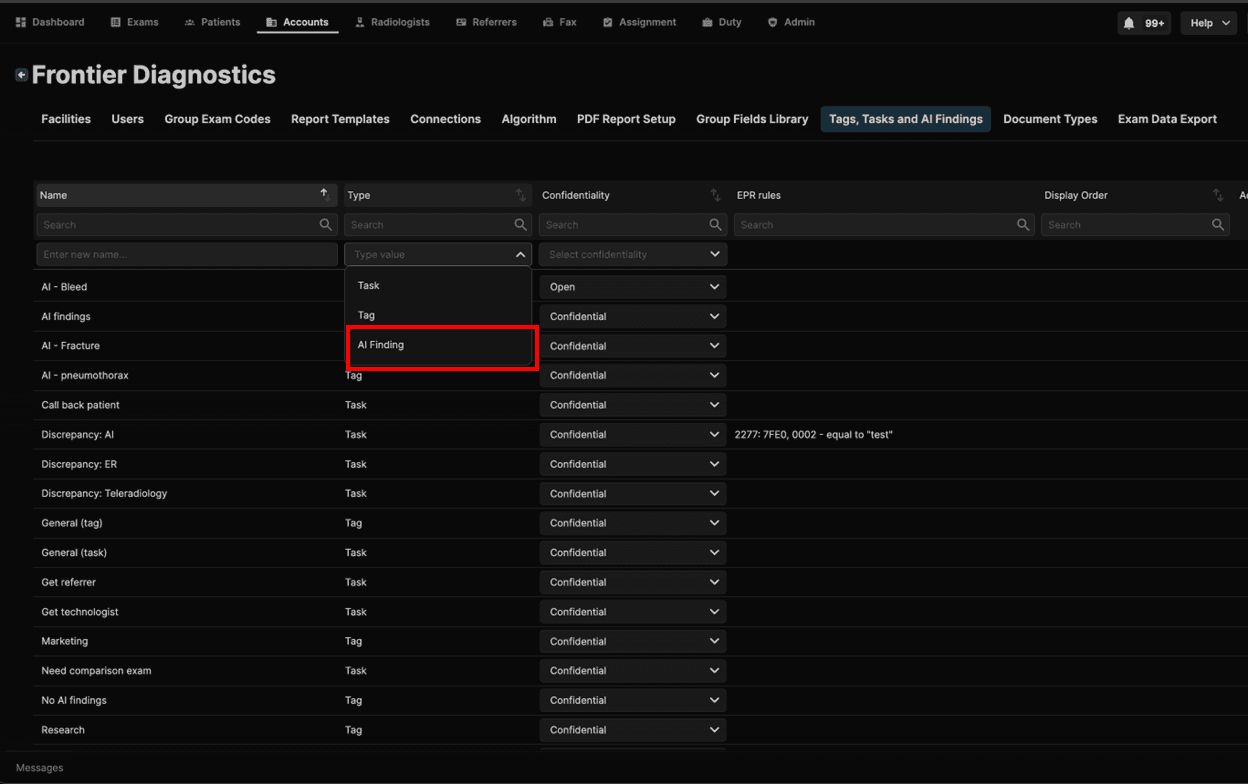
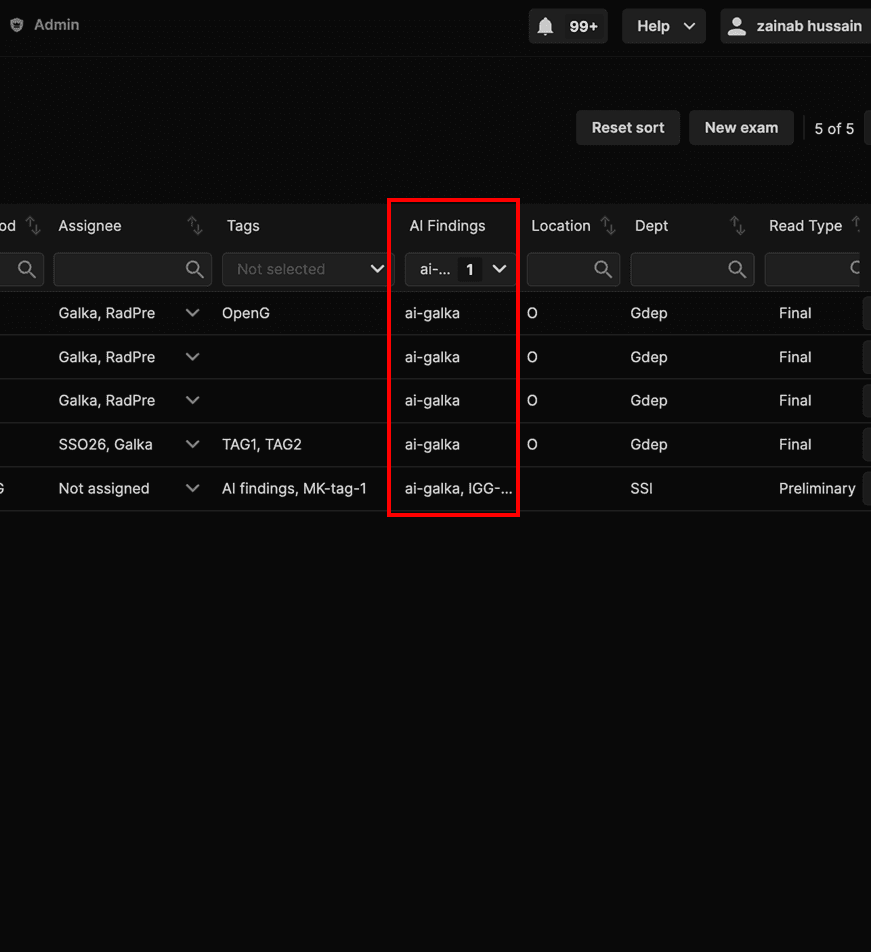
Previously, the only way to surface AI findings from external systems via HL7 was to use a standard tag. There was no dedicated type for AI-sourced content — it was grouped together with regular tags and tasks under a single checkbox labeled "is task." There was also no way to control the display order of tags in the worklist, and no distinct visibility or filtering for AI-generated entries. The Tags and Tasks framework has been extended to support a dedicated AI Finding tag type, giving facilities a structured way to surface algorithmic findings alongside standard workflow tags.
|
 |
 |
Exam Lifecycle Management — Images Added to Completed Exams |
|---|
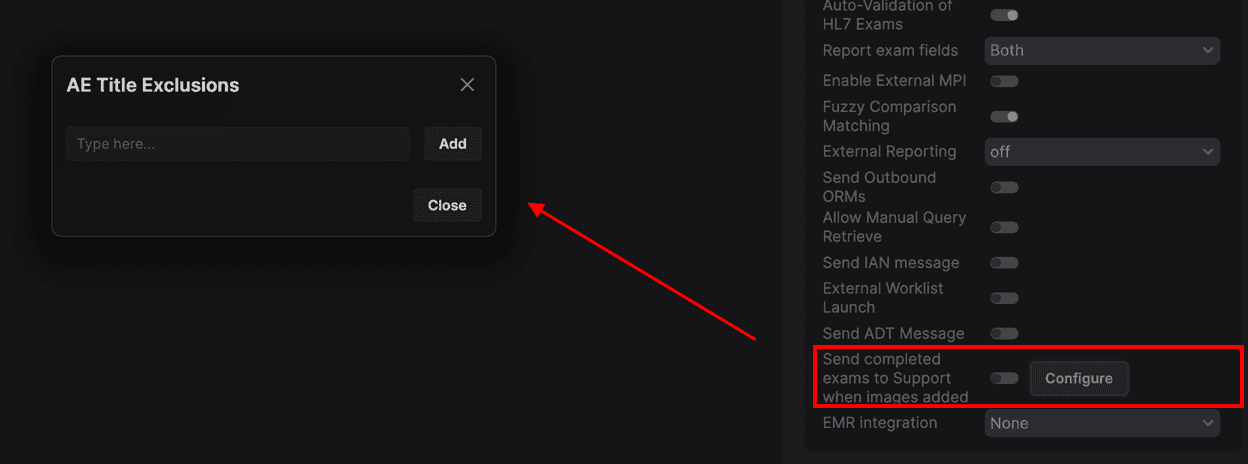
Prior to this improvement, when a Completed exam was moved to Support Request status, the option to request an addendum was not available while the exam remained in that status. In addition, users were not notified when additional images were received for a completed exam, making it more difficult to identify whether the finalized report should be reviewed or updated based on the newly available images. Now when new images arrive for a completed exam, the platform now automatically flags the exam for review, so technicians or admins can determine whether an addendum is required.
|
 |
Annotation and Image Edit Saving — Role-Based Permissions and User Preferences |
|---|
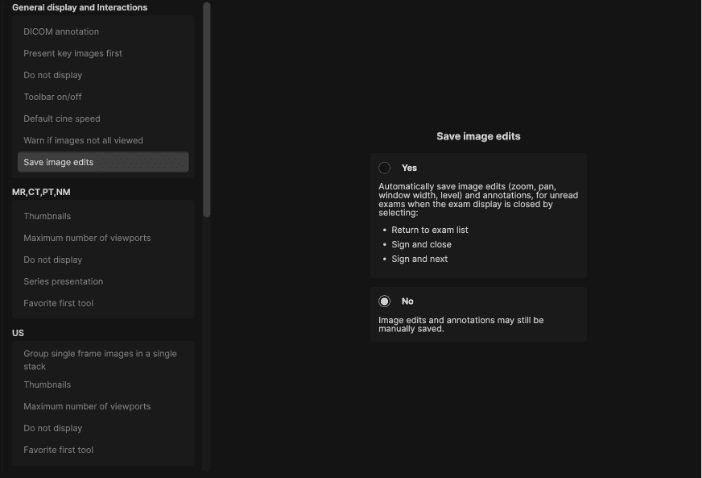
Previously, there was only the ability to save annotations but not the ability to save presentation states in the viewer. Any changes made during a session — including annotations, zoom, pan, and window adjustments — were lost when the exam was closed. Saving of annotations and image edits (zoom, pan, window width, level) in the Viewer is now governed by role-based permissions and a configurable per-user preference, giving users precise control over what gets persisted and when. |
Permission-Based Access A new permission — "Save GSPS/Annotations on System Default Viewer" — controls which roles can create, update, and delete annotations. Users without this permission can still create and work with annotations during an active session, but nothing will be saved when the exam is closed. |
User Preference — Save Image Edits Users such as Reading physicians will find a new "Save Image Edits" setting in the Hanging Protocol window under General Display and Interactions, with two options:
|
How Saving Behaves During In-Session Navigation Regardless of the Save Image Edits preference, annotations are always auto-saved for unsigned exams whenever the reading physician navigates within the app — such as skipping to another exam, returning to the worklist, or switching exams. The preference only controls what happens at the point of signing. |
Viewing and Managing Presentation States Saved presentation states are accessible from the Viewer under Presentation States. The panel displays all saved states for the exam, each showing the date/time saved and the reading physician who saved it. A "Save current presentation state" button is also available directly in this panel. When Auto-Save is enabled, a note is displayed confirming that the presentation state will be saved on return to exam list, sign and next, skip, or sign and close. |
Audit Trail All annotation create, update, and delete actions are logged with the username, date, and time, supporting compliance and accountability requirements. |
 |
Native App Status Indicator |
|---|
A new visual indicator at the bottom-right corner of the exam details screen now shows whether the Native App is connected and integrations are available. It reflects whether the Native App is running and integrations with third-party systems are active. The icon polls automatically and updates every 30 seconds — no page refresh is needed. This indicator is visible to all users. No action is required if your facility does not use third-party integrations. |
Icon States
|
Who Is Affected
|
What To Do If the Icon Is Red
|
Ability to Scan Documents |
|---|
What’s New
|
Impact to Users
|
 |