Toolbar On/Off Configuration | ||
|---|---|---|
What’s New: | ||
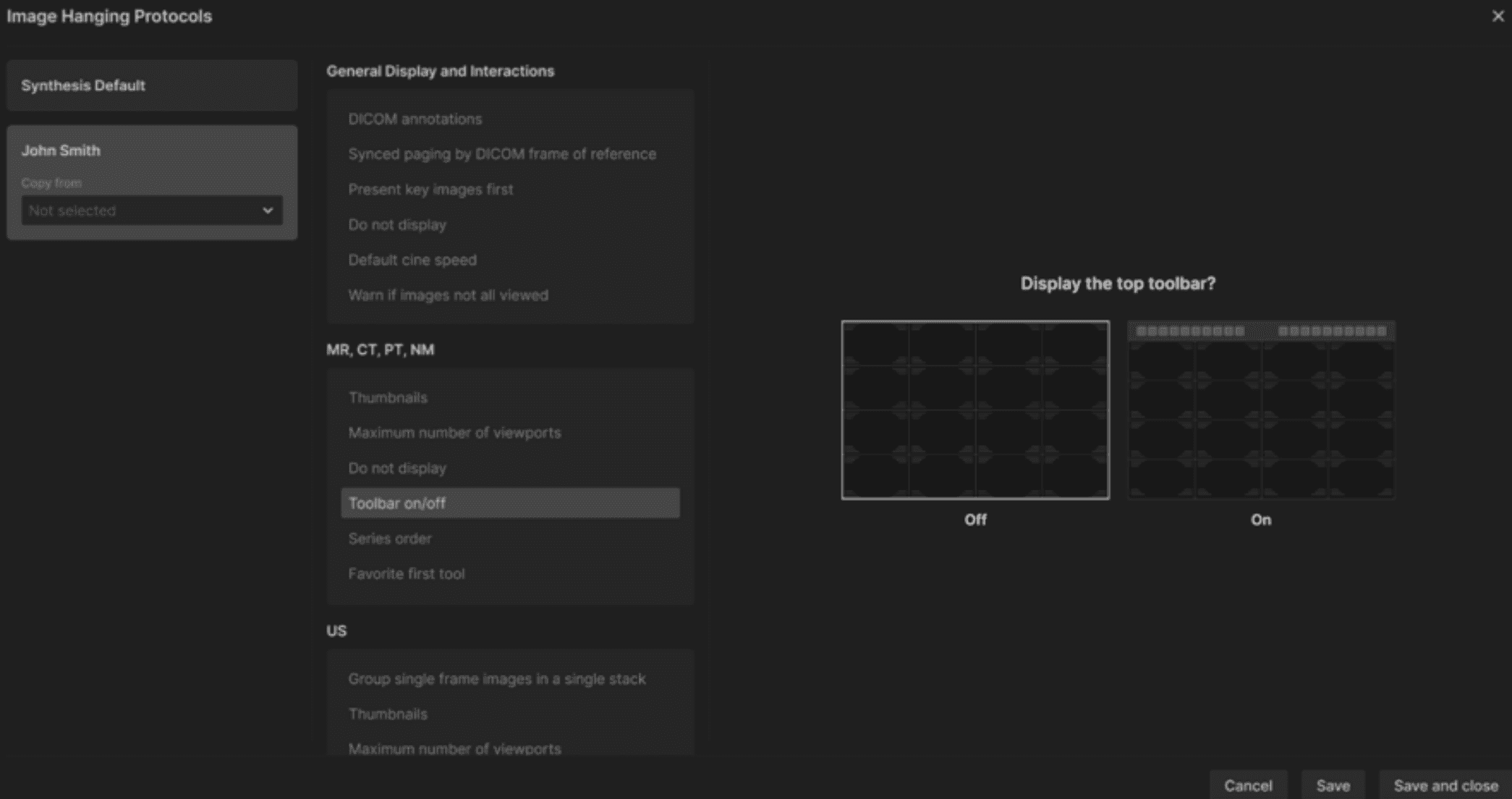
A user can now control whether the top viewer toolbar is displayed or hidden. A new “Toolbar on/off” option has been added under General Display & Interactions in Hanging Protocols. | ||
| ||
Impact to Users: | ||
This allows radiologists to customize their workspace based on personal preference or screen size. Users who prefer a minimal interface can maximize their image display without losing access to tools. | ||
 |
Favorite First Tool Configuration | ||
|---|---|---|
What’s New: | ||
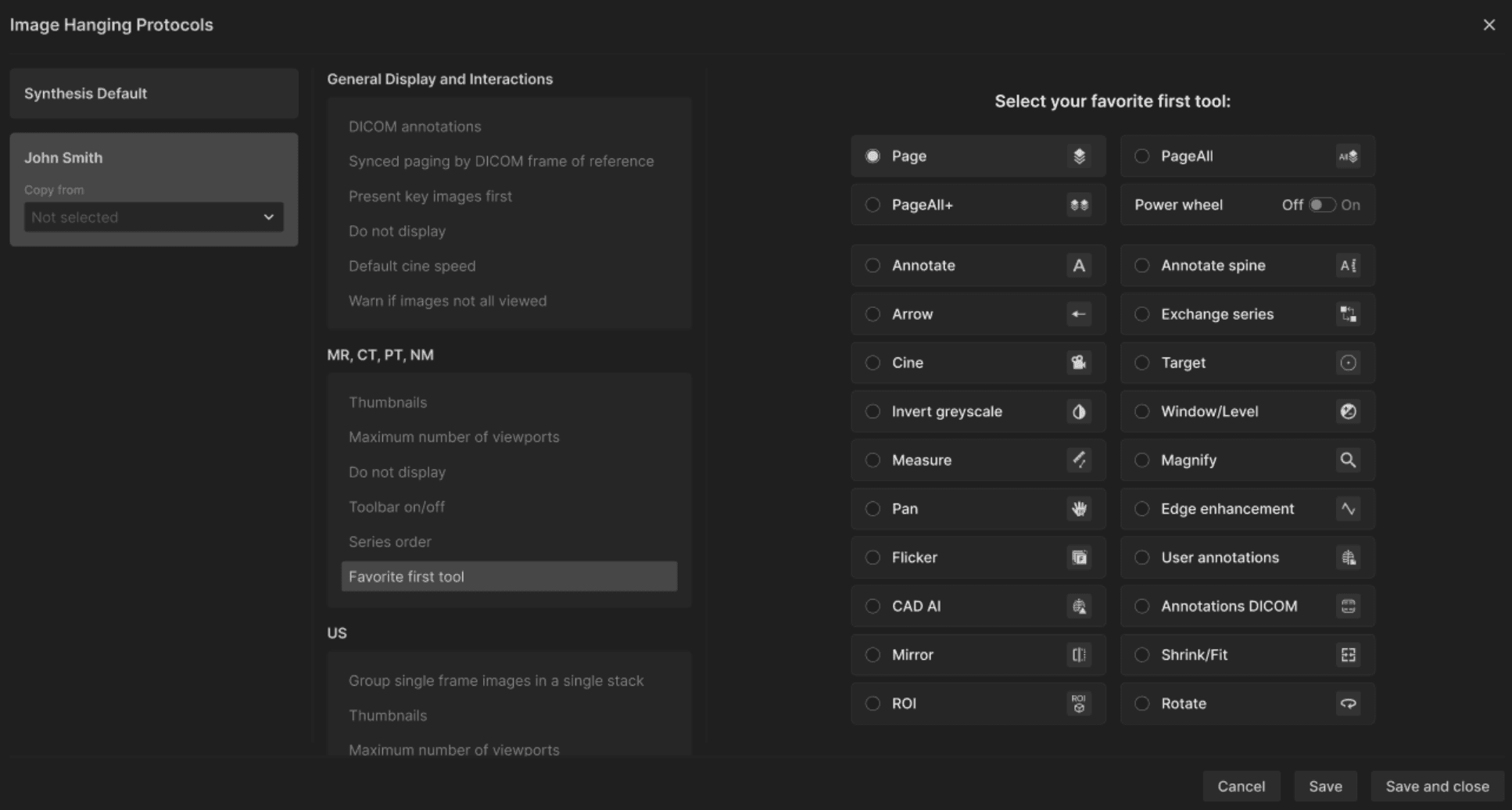
A user can now choose a default “favorite first tool” for each modality (CT, MR, PT, etc.) within Hanging Protocols. | ||
| ||
Impact to Users: | ||
This reduces repetitive tool switching and ensures the viewer opens in the most useful state for each modality. It enhances reading efficiency and supports radiologists who frequently navigate between different imaging types. | ||
 |
Warn if Images Not Viewed | ||
|---|---|---|
What’s New: | ||
A new setting, “Warn if images not all viewed,” alerts users when attempting to sign a report without reviewing all series. | ||
| ||
Impact to Users: | ||
This protects against incomplete review and helps ensure diagnostic accuracy. Radiologists receive a clear decision point before finalizing a report and can choose to continue reviewing or complete the signature. |
Key Images in PDF Reports | ||
|---|---|---|
What’s New: | ||
Radiologists can now select and annotate up to four key images to appear in PDF reports. | ||
| ||
Impact to Users: | ||
Key images highlight essential findings, making reports more informative for referring clinicians and patients. This improves communication, report readability, and clinical clarity without altering existing workflows. |
Generate External Link Enhancements | ||
|---|---|---|
What’s New: | ||
External links now open the full reporting screen, including the comparison exam list with available reports and images for easier navigation. The images will launch in the default viewer. The reporting screen header now also includes the accession number for clarity. | ||
| ||
Impact to Users: | ||
Shared cases now provide complete clinical context, enabling better collaboration with referring providers and external partners. The richer interface reduces misunderstandings and supports more informed clinical decisions. |
Multi-Select in Unmatched Tab | ||
|---|---|---|
What’s New: | ||
A user can now multi-select exams in the Unmatched tab and delete them in a single action. | ||
| ||
Impact to Users: | ||
Users can clean up large sets of unmatched exams quickly, reducing clutter and administrative overhead. This improves data hygiene and speeds up facility-level exam management. | ||
 |
Read Now, Sign and Next, Skip Improvements | ||
|---|---|---|
What’s New: | ||
The logic for Read Now, Sign & Next, and Skip has been unified and streamlined. | ||
| ||
Impact to Users: | ||
Radiologists move through exams more consistently and intuitively. The workflow is smoother, with more predictable exam transitions, fewer interruptions, and faster navigation through high-volume lists. Clear messaging appears when all exams have been read, reducing confusion. |
Predictive Assignment Improvements | ||
|---|---|---|
What’s New: | ||
The system now temporarily assigns and preloads the next expected exam while the radiologist reads the current one. | ||
| ||
Impact to Users: | ||
Radiologists experience significantly reduced loading delays when advancing to the next exam. This helps maintain reading momentum and improves efficiency, especially on unassigned lists or high-volume workloads. |